Locate images and colors.
Find a visual target with image matching or color patterns. Use the matching coordinates to tap a button or branch into another action.
Image matching
Control apps, recognize images and text, and automate tasks.
Build Lua scripts around what you
need your device to do.
iPhone & iPad · Rootful · Rootless · roothide
 AutoTouch
/ Automation toolkitEXPLORE THE API
AutoTouch
/ Automation toolkitEXPLORE THE API
-- Open an app.
appRun("com.apple.mobilesafari")
usleep(1000000)

-- Use coordinates for your screen.
tap(320, 640)Launch apps, simulate touches and enter text through Lua. Combine these actions with conditions and loops to automate a task. Adapt coordinates and timing to your device.
Explore the Lua APIRECOGNITION + SCRIPTING
Find images, read text and use the results in your Lua logic. Your script decides what happens next.
Find a visual target with image matching or color patterns. Use the matching coordinates to tap a button or branch into another action.
Image matchingExtract text from the screen with OCR. Check a label, read a value or use the result in a condition. Local Vision OCR requires iOS 13+.
Text recognitionCombine app control, touch input, conditions and loops. Use the Function Helper and API reference as you build.
Browse the Lua API ↗Manage script files with WebDAV and integrate device control through the HTTP API over your local network.
Explore remote control ↗RUN SCRIPTS ON YOUR DEVICE
Hold Volume Down to open the control panel. Run a saved script, capture the screen for image matching, or record actions as a starting point for a script.
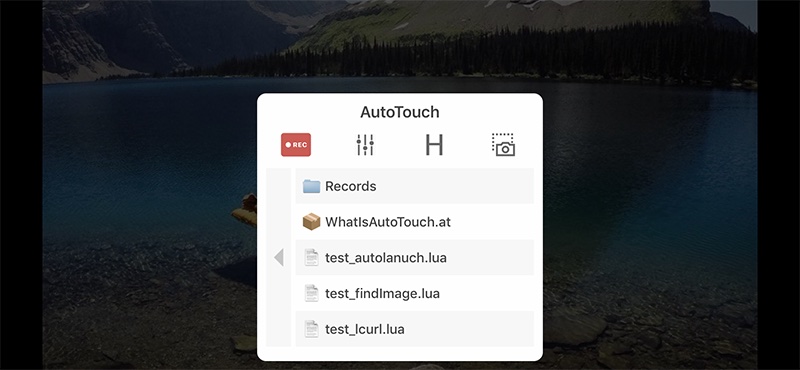
Launch a script from the control panel and stop it with a long press of Volume Down.
Need a starting point? Record touch actions as Lua code, then add the logic your task needs.
Run your scriptsGET AUTOTOUCH
Add the official source, install the package for your jailbreak, and start building your scripts.
Read the installation guide
Add this source in Cydia, Sileo or Zebra.
Copy the address, then add it to your package manager’s sources.
Yes. AutoTouch runs on jailbroken iPhone and iPad devices. Add the official repository to your package manager and install the package compatible with your jailbreak. It is not an App Store app.
Custom automation is built with Lua scripts. Recording can help generate touch actions as a starting point; you can then add conditions, image recognition and other logic. The Lua guide includes examples to help you get started.
Current builds use Lua. JavaScript scripts are no longer supported. If you are coming from an older version, check the release notes and update your scripts against the current Lua API.
Hold Volume Down to stop the running script. See the user guide if you have customized the control action.
Yes. Enable AutoTouch’s Web Server to manage scripts in a browser, or connect a WebDAV client to the address shown in settings. The HTTP API lets your tools control AutoTouch over your local network.
Open License in AutoTouch settings or visit license management to see current plans, purchase a license and activate your device. Check the license status on your device after activation.
BUILT FOR WHAT YOU WANT TO DO
Start with the Lua API. Build a script around your task.